
Jadu (Confident Plum) · AI makeup and character mockups
Keep the actor’s face 99% preserved,
create character concepts in
Create a character concept in 3 minutes
Here’s how Jadu works.
A demo based on the actual workspace
Click the photo again to move the pin.
Try it with your keyboard
Focus the photo and press Enter or Space to place a pin. Use the arrow keys to move it, or hold Shift for larger steps. Use Tab to select a reference photo.
Jadu puts facial consistency first
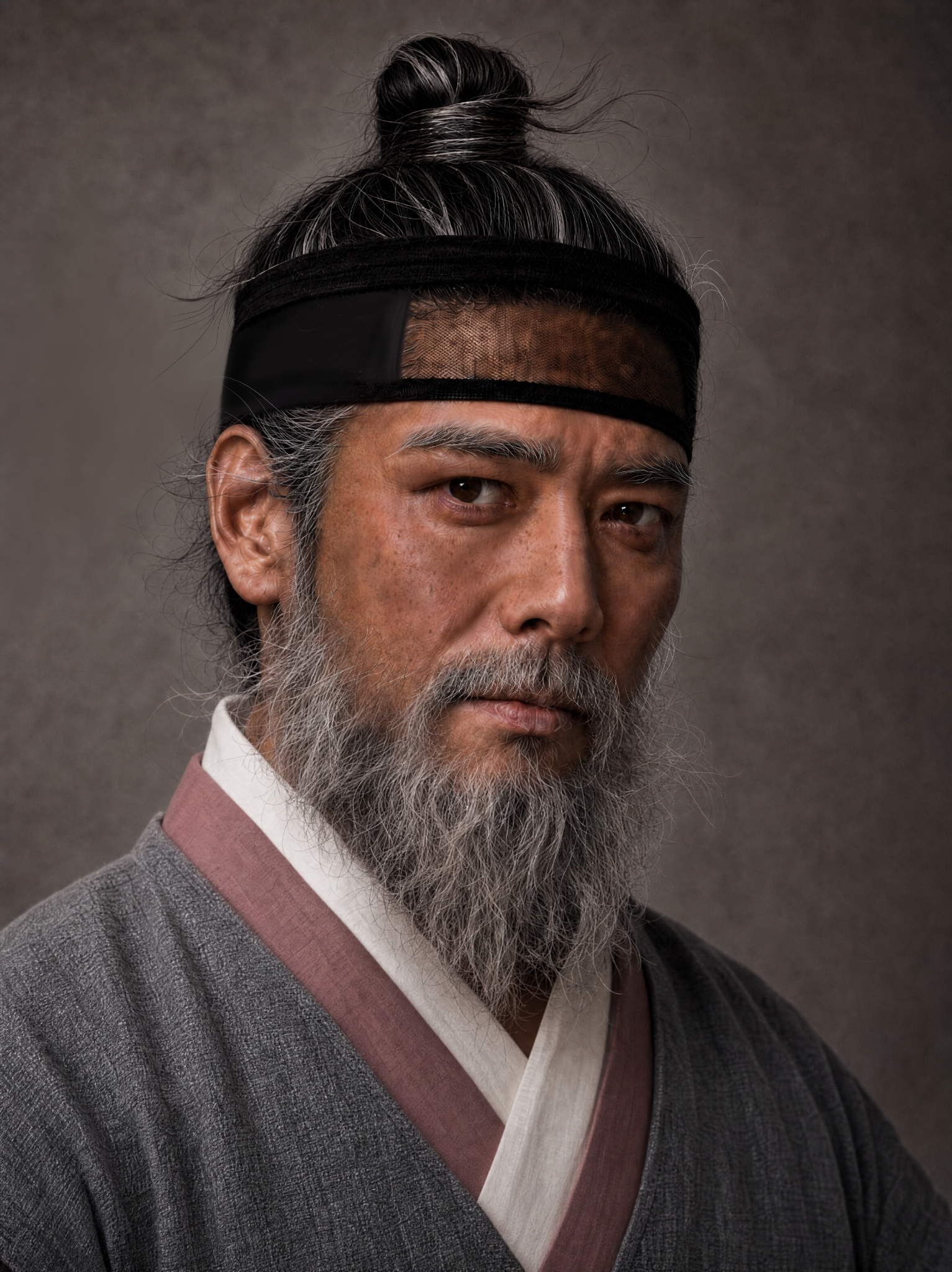
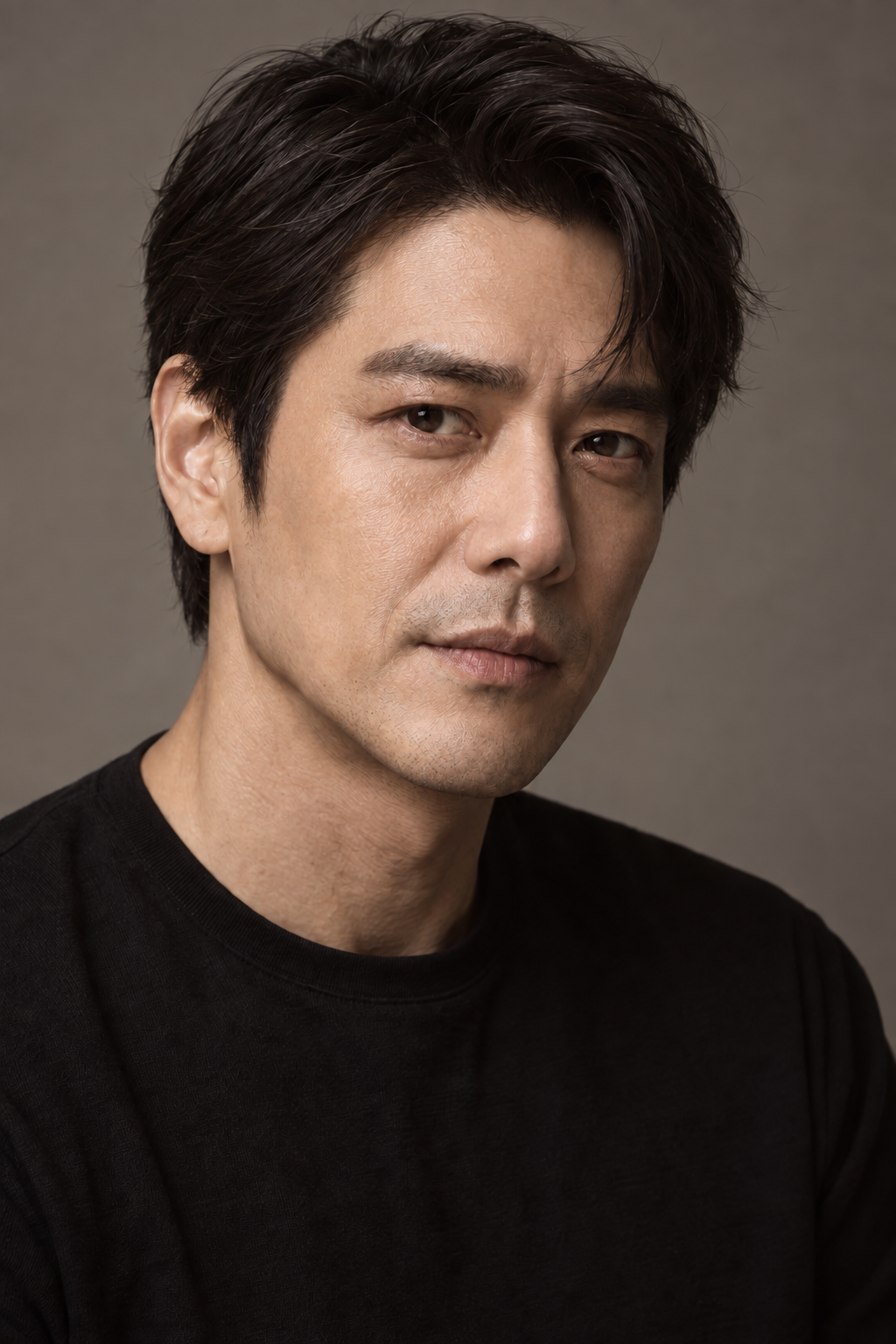
Jadu in action — 01
From beard to topknot and costume,
one character concept.
Connect an image reference to each area and review your character’s beard, hair, and wardrobe together.
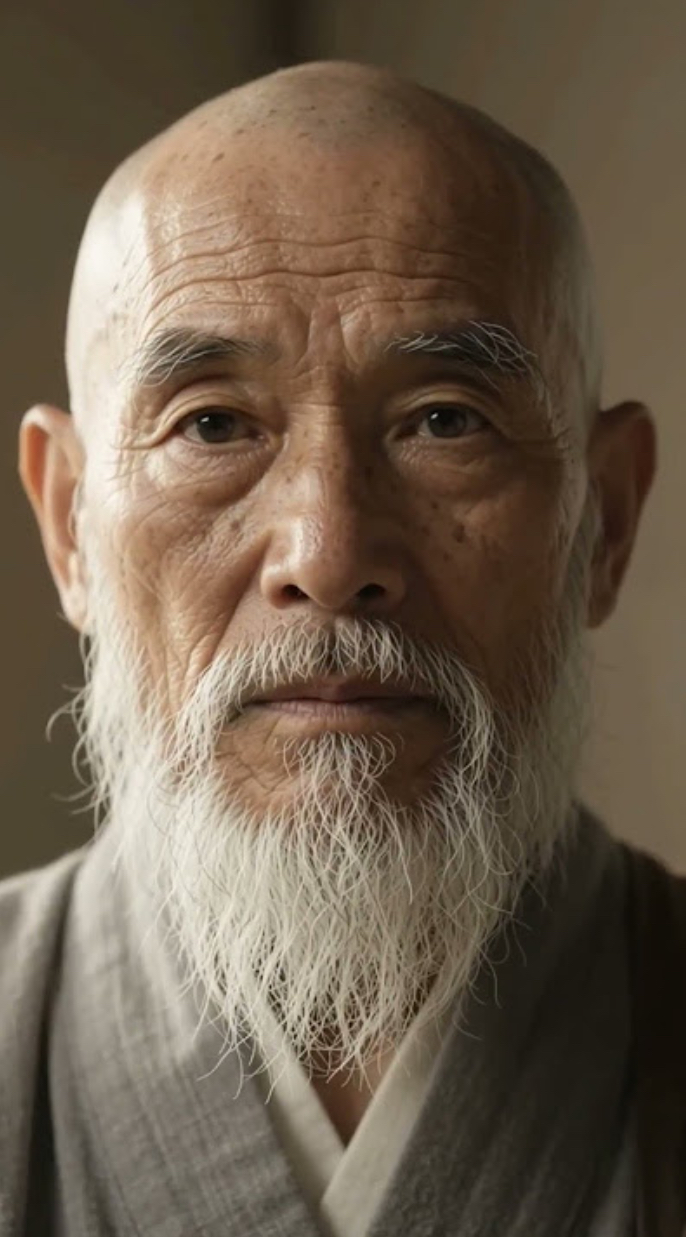 BeardSalt-and-pepper beardMake the beard salt-and-pepper
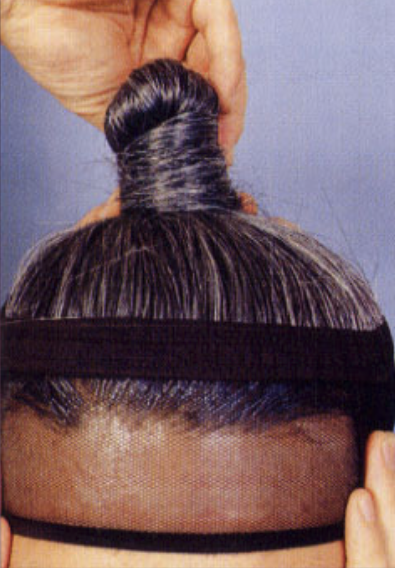 HairTopknot
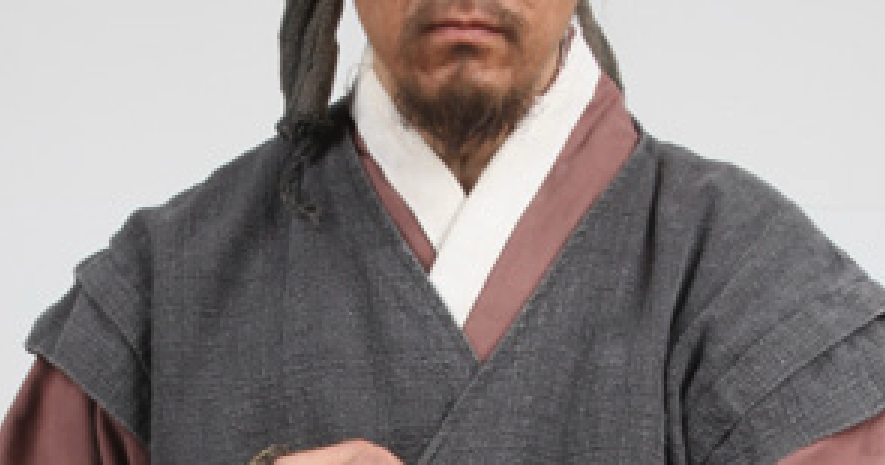 ClothingPeriod costume
Try it yourself
Click the photo,
and describe the change on a pin.
Place a pin on the part of the original photo you want to change and describe the edit.
This demo shows a pre-made example and does not generate a new image.
Click the photo,
describe the change on a pin.
Choose a spot on the photo to place a pin and open its input field.
A makeup concept applied to the same actor.
Pin 01 ·
This is a pre-made example, not a new image generated from your input.
Tools for character development
Turn spoken details into
one shared image.
Jadu brings scattered references and verbal feedback into one visual language for directors, designers, and production teams to review together.
Pin your references
Place a pin exactly where you want a change and connect a dedicated image reference to that location.
Style in stages
Build your character step by step with hair, makeup, beards, scars, accessories, and wardrobe.
Make decisions visually
Compare and save each stage before makeup or filming, and share feedback through one image.
Before you start
Your questions,
answered.
Everything you need to know before creating your first character concept.
What photos should I prepare?
Prepare one clear portrait and reference photos showing the hair, makeup, wardrobe, or other details you want to apply. Set the original photo’s framing first, then place pins where you want changes.
Can I change several areas together?
Each pin can have its own reference photo and selected feature. Apply hair, then makeup or wardrobe, and review the result at each stage.
Are my photos and results public?
Your photos and results are available in your own studio and are not shared with other users.
Can I save the finished images?
You can download intermediate results and the final image individually. Reopen completed work from your work list whenever you need it.
Will the person look exactly the same as the original?
Composition uses the original person and scene as its reference, but an identical face, expression, or texture cannot be guaranteed. Compare the original and result, and use the image as a reference when deciding on actual makeup or filming.